

The Salesforce Spring ’25 release introduces a variety of exciting updates to Salesforce Flow, enhancing automation capabilities and user experience.
Enhanced Flow Performance
The Spring ’25 release brings significant improvements to flow performance, focusing on optimizing execution speed and reliability. These enhancements ensure that flows run more efficiently, reducing latency and improving the overall user experience. By streamlining processes and refining backend algorithms, users can expect faster execution times and more dependable results, enabling them to build robust automation solutions with confidence.
Dynamic Flow Triggers
In this release, Salesforce introduces Dynamic Flow Triggers, a powerful feature that allows users to set up conditional logic to automatically trigger flows based on specific events or changes in data. This addition empowers users to create more responsive and adaptive automation processes, responding in real-time to business needs and operational changes. By leveraging this feature, businesses can ensure that their workflows remain agile and aligned with dynamic requirements.
Enhanced Debugging Capabilities
Understanding the need for efficient troubleshooting, the Spring ’25 release offers enhanced debugging tools for Salesforce Flow. Users can now access detailed execution logs and real-time error tracking, simplifying the identification and resolution of issues within flows. These tools provide deeper insights into flow performance and behavior, facilitating a more proactive approach to managing and optimizing automation efforts. With enhanced debugging capabilities, users can maintain high standards of accuracy and reliability in their automated processes.
These updates reflect Salesforce’s commitment to providing sophisticated tools that enhance automation and improve user productivity, ensuring that users can harness the full potential of Salesforce Flow to drive business success.
Below is an overview of the key updates:
Flow Enhancements
- Access Flow Versions in New Tabs
With the Spring ’25 release, Salesforce addresses this need by introducing a new feature that allows users to easily compare different flow versions side-by-side. This enhancement provides detailed metrics for each version, such as execution times, resource usage, and success rates, all displayed in a clear and intuitive interface. Users can now make informed decisions about which version best meets their needs, ensuring optimal performance and efficiency.

How to configure
- Launch the flow builder to access an existing flow.
- Select the flow or current version name located in the header of the flow builder.
- A dropdown will appear, displaying all existing versions.
- Choose a version from the dropdown to open it in a new tab.
2. Send Email with Attachments
To address this need, the Spring ’25 release introduces the ability to send emails with attachments directly within a flow. This feature allows users to configure and attach files seamlessly, enhancing the versatility and functionality of automated communications. By leveraging this capability, users can ensure that all necessary documents accompany their emails, providing recipients with comprehensive information in a single, streamlined process. Whether sending invoices, reports, or personalized documents, this update simplifies workflow and enhances user productivity by automating the inclusion of relevant attachments.

How to configure
The Send Email action now allows for attachments!
- In Flow Builder, either edit an existing Send Email action or create a new one.
- While configuring the input values, enable the new Attachment ID input property.
- Choose a resource or input a comma-separated list of Attachment or ContentDocument IDs.
- When the Flow is executed, the email will include these as attachments.
3. Set Limit for Get Records
With the Spring ’25 release, Salesforce has introduced a new feature that allows users to set a limit on the number of records returned by a Get Records element in a flow. This enhancement is particularly useful for managing large datasets and ensuring compliance with Salesforce’s governance limits, specifically the 50,000 result set limit for SOQL queries. By specifying a maximum number of records to retrieve, users can optimize their flows to run more efficiently and prevent potential performance issues.

How to configure
- Open the Flow Builder and locate the Get Records element you want to configure.
- In the Get Records configuration panel, find the new ‘Limit’ option.
- Enter the maximum number of records that should be returned by the query.
- Save your flow and test to ensure that the limit is enforced as expected.
This feature not only helps in maintaining the operational efficiency of the flows but also allows for better resource management and control over data handling within your Salesforce environment.
4. Transform Join
In the Spring ’25 release, Salesforce introduces the Transform Join feature, designed to streamline how users manage and manipulate data within flows. This feature simplifies the process of combining datasets, such as orders and products, by automatically performing inner joins. With Transform Join, users can effortlessly create a unified list of products linked to their respective orders, while filtering out any draft orders without products and products without orders. This enhancement not only reduces the complexity of data preparation but also ensures that only relevant and complete records are processed, enhancing the overall efficiency and accuracy of data handling within Salesforce.


How to configure
- The builder must select two source collections to join and identify one collection into which these two will be merged.
- Determine the join key, which is the common field used for joining.
- Decide which fields, objects, or collections will be carried over.
- Map the fields, objects, or collections from the previous step to the target collection.
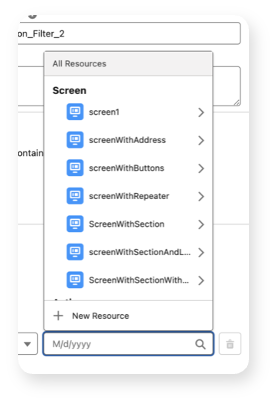
5. New Resource Picker Rollout Progress
To the Spring ’25 release, Salesforce introduces a New Resource Picker, designed to streamline hhhhm.f,lthe process of selecting flow resources. This feature provides an intuitive interface that icker, users can effortlessly find and select the resources they need, reducing the time spent mnnmdesigning effective and efficient automation solutions.
How to configure
In the Spring ’25 release, the user-friendly resource picker has been significantly enhanced to encompass more elements. It is now automatically activated in the Decision, Create Records, Assignment, Loop, Subflow, Sort, Orchestrator Stage, and Orchestrator Step elements. Furthermore, it is accessible for pickers in other elements, though you may observe a mix of both the old and new resourHce pickers.NZ
6. Search For Nested Resources
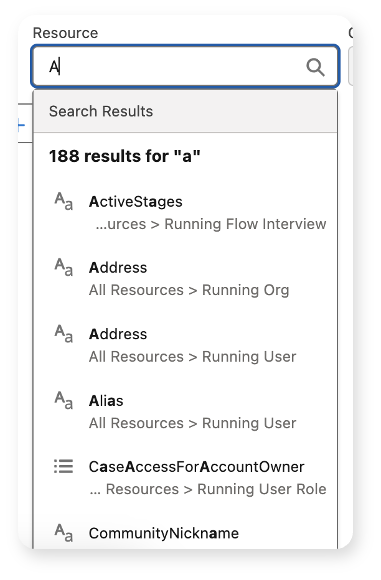
With the Spring ’25 release, the enhanced New Resource Picker now enables users to search across multiple views simultaneously, significantly improving the speed and ease of locating deeply nested resources. This advancement simplifies navigation within complex flows, allowing users to swiftly access and manage the specific resources they need. By enhancing the search capabilities, this feature not only reduces the time spent on resource management but also enhances the overall user experience, empowering users to focus more on designing effective automation solutions without getting bogged down in navigation complexities.
How to configure
The newly implemented nested search feature enables the display of all resources (up to 10 nested layers) within the resource picker search results. This enhancement will be automatically activated in all flow resource pickers that utilize the updated resource picker.
Flow Management
7. Create New Flow Experience
With the Spring ’25 release, Salesforce addresses these challenges by introducing a streamlined Flow creation experience. This enhancement focuses on reducing the number of clicks needed to set up and configure flows, making the process more intuitive and efficient. Users will benefit from a cleaner interface with simplified navigation, allowing them to focus more on building effective automation solutions rather than managing cumbersome setup steps. By minimizing friction, Salesforce empowers users to quickly bring their automation visions to life, ultimately enhancing productivity and user satisfaction.

How to configure
No setup is required! Simply launch the Salesforce Automation App or Marketing App, select the “Flows” tab, and then hit the “New” button!
8. Monitor Tab for Automation App
To enhance the user experience with Flow Integration GA, the Spring ’25 release introduces a robust error management feature within the automation app. This update provides users with a comprehensive list view dedicated to connector errors, allowing for swift identification and resolution of issues that may arise during flow execution.
In addition to this, the error management interface has been expanded to display all types of errors and their detailed descriptions that occur during a flow interview. This comprehensive error logging ensures that users have immediate access to the necessary information to troubleshoot and rectify problems efficiently.
Moreover, users now have the ability to view both paused and failed flows in a consolidated list view. This feature streamlines the process of monitoring flow statuses and managing flow executions, enhancing overall workflow oversight. By integrating these functionalities into the automation app, Salesforce empowers users to maintain seamless and error-free automated processes, ultimately improving operational efficiency and reliability.
How to configure
- Launch the Automation app
- Navigate to the Monitor tab

Screen Flows
9. Real-Time Validation for Screen Components
To improve this process, the Spring ’25 release introduces real-time validation capabilities for screen components. This new feature allows users to receive immediate feedback as they fill out each field, highlighting errors or missing information right away. By providing instant validation, users can correct any issues on the spot, reducing the need for multiple form submissions and improving the overall user experience. This enhancement not only makes data entry more efficient but also ensures higher data accuracy and consistency within the system, helping users to streamline their workflows and avoid potential errors before proceeding to the next step.
How to configure
- Upgrade the runtime API version of your flow to 63.0 or above.
- Establish validation rules for screen components as you typically do. Any validation expressions that utilize reactive-supported formula functions will be processed right away.
- When the user selects Next, the rules will be executed again.
10. Reactive Screen Actions
To address these challenges, the Salesforce Spring ’25 release introduces a new feature: Embedded Data Fetch. This innovative solution allows users to seamlessly query and display data directly on the screen without the need for additional button presses or extensive SOQL knowledge. By integrating Embedded Data Fetch into flows, users can dynamically update screen components with relevant data in real-time, enhancing the interactivity and user experience of Salesforce applications.

How to configure Embedded Data Fetch
- Open the Flow Builder and select the screen where you want to display the data.
- Add a new Data Fetch component to the desired screen.
- Define the data source using intuitive filters and conditions, eliminating the need for complex SOQL queries.
- Configure the display settings to choose how the data should be presented to the user, ensuring clarity and usability.
- Test the flow to verify that the data is fetched and displayed correctly on the screen.
This feature streamlines the process of integrating dynamic data displays within flows, providing users with immediate access to the information they need without additional steps or installations. By simplifying data interaction, Salesforce empowers users to focus on more strategic tasks and improve overall workflow efficiency.
11. Built-in Progress Indicators
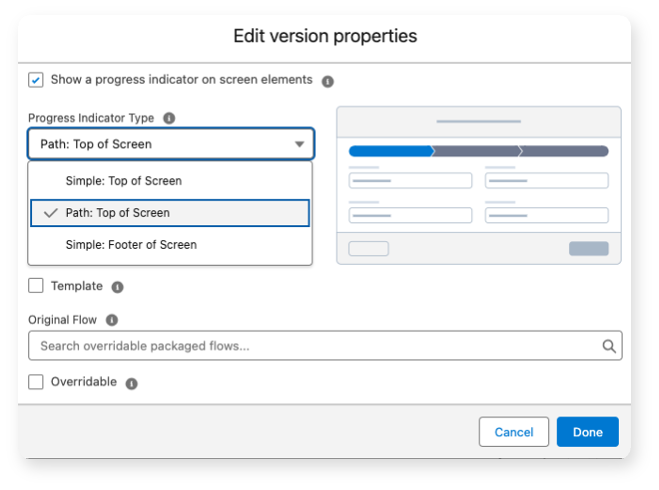
However, with the Spring ’25 release, Salesforce is introducing Built-in Progress Indicators, a feature designed to simplify this process by providing out-of-the-box visual indicators. These indicators automatically track and display a user’s progression through various stages of a flow, eliminating the need for custom development. This enhancement not only saves time and resources but also ensures consistency and a professional appearance across different flows. By leveraging Built-in Progress Indicators, users can enhance their flow interfaces, making them more intuitive and user-friendly, ultimately improving the overall experience for end-users navigating through complex processes.
How to configure
Progress indicators are automatically activated for flows created with the Spring ’25 release. Existing flows will maintain their previous configurations. To enable progress indicators for existing flows, follow these steps:
- In the flow’s settings, select Open Advanced.
- Turn on progress indicators.
- Set the desired location and style for the indicator.
12. Enhanced Flow Stage Management
To address this, the Spring ’25 release introduces Enhanced Flow Stage Management, a feature designed to streamline the process of managing stages within flows. This update reduces the need for repetitive assignments by allowing admins to set conditions directly on stage transitions, thereby eliminating unnecessary nodes and simplifying flow design. With this enhancement, admins can effortlessly adjust stage settings with minimal effort, improving the overall efficiency of flow management and reducing the complexity of the visual canvas. This not only saves time but also enhances the user experience by making the flow configuration process more intuitive and less cumbersome.

How to configure
In a scenario where the stage needs to be reset with a particular screen, link that screen to the designated stage.
- Access the relevant screen.
- In the Screen Properties, assign the appropriate stage to the Stage setting.
During runtime, the flow will automatically adjust the $Flow.CurrentStage and $Flow.ActiveStages variables as needed.
Conclusion
The Salesforce Spring ’25 release unveils a multitude of enhancements to Salesforce Flow, significantly improving automation capabilities and user experience. With features such as Dynamic Flow Triggers, enhanced debugging tools, and a streamlined Flow creation experience, users are empowered to create more responsive, efficient, and robust automation solutions. The introduction of tools like real-time validation for screen components and Built-in Progress Indicators enhances data accuracy and user navigation, making complex processes more intuitive. Overall, these updates reflect Salesforce’s commitment to evolving their platform, enabling businesses to adapt swiftly to changing operational needs and drive greater success through improved productivity and automation efficacy.
 Apex Journal
Leave a comment